Trace: Digitize Drawings
This section demonstrates how published pottery drawings, whether in raster or PDF format, can be digitized using the LAP application. It covers scaling, profile and handle extraction, and even text recognition for integrating annotated material into the database.
Opening and Preparing the Drawing
- Go to Trace mode and open an external document.
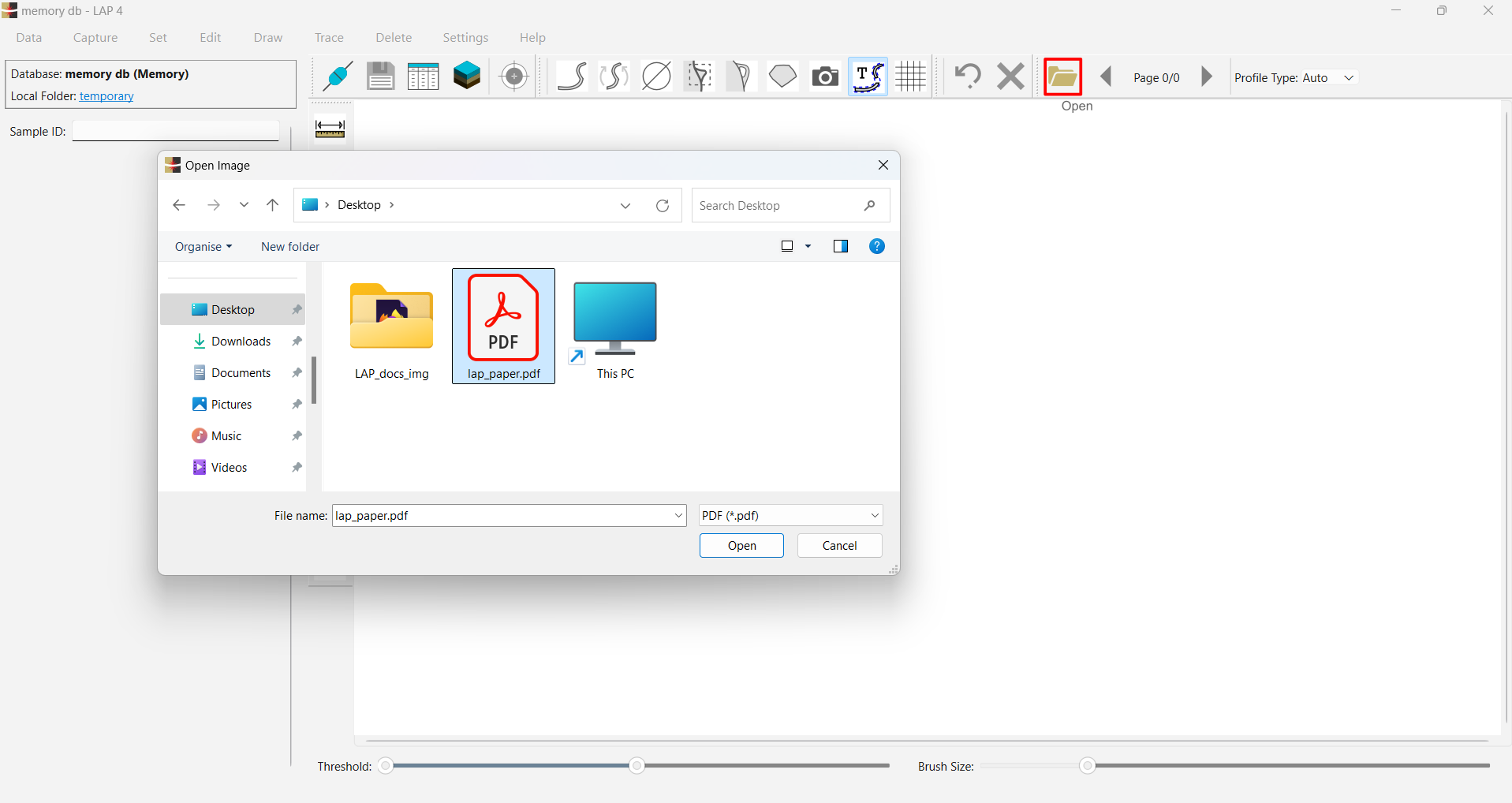
- Page navigation is supported for multi-page files.
- A threshold is automatically applied to highlight visible features - it can be manually adjusted.

Scaling the Drawing
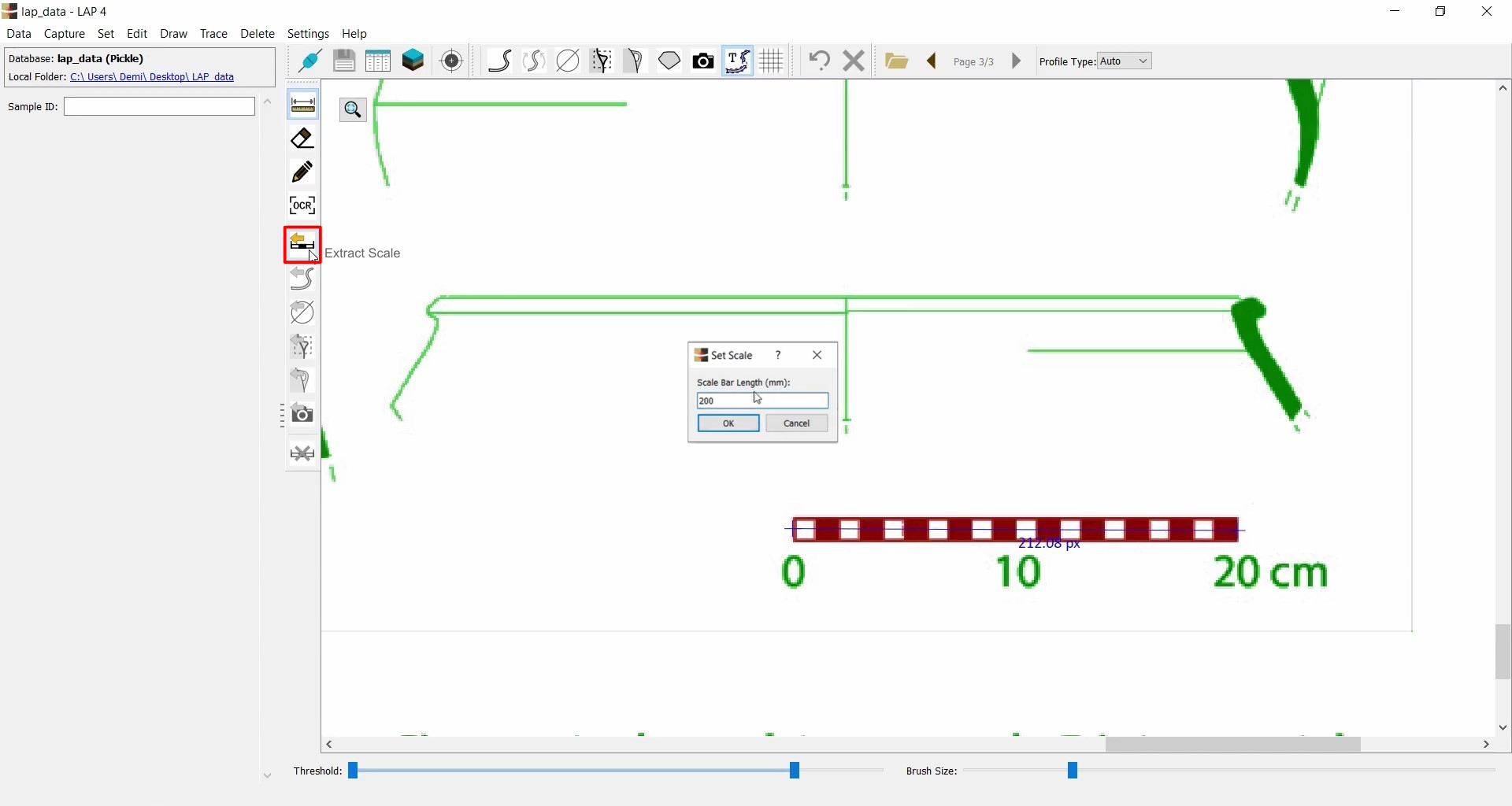
To ensure that all extracted elements (like profiles and diameters) are dimensionally accurate, it is important to start by isolating and extracting the scale bar. This provides the reference needed for correct measurement and vectorization.
- Select the scale bar in the image.
- Use the Measure Tool to measure its length in pixels.
- Click Extract Scale (
 ), then enter the actual length (e.g., 200 mm).
Extracting Profile
The mask needs to be adjusted:
- Use the Erase Masked Area tool to disconnect unwanted elements (e.g., handles, decorations).
- Use the Paint Mask tool to restore any parts erased by mistake.
- Once only the profile is masked, click Extract Profile (
 ) to create a vectorized version.
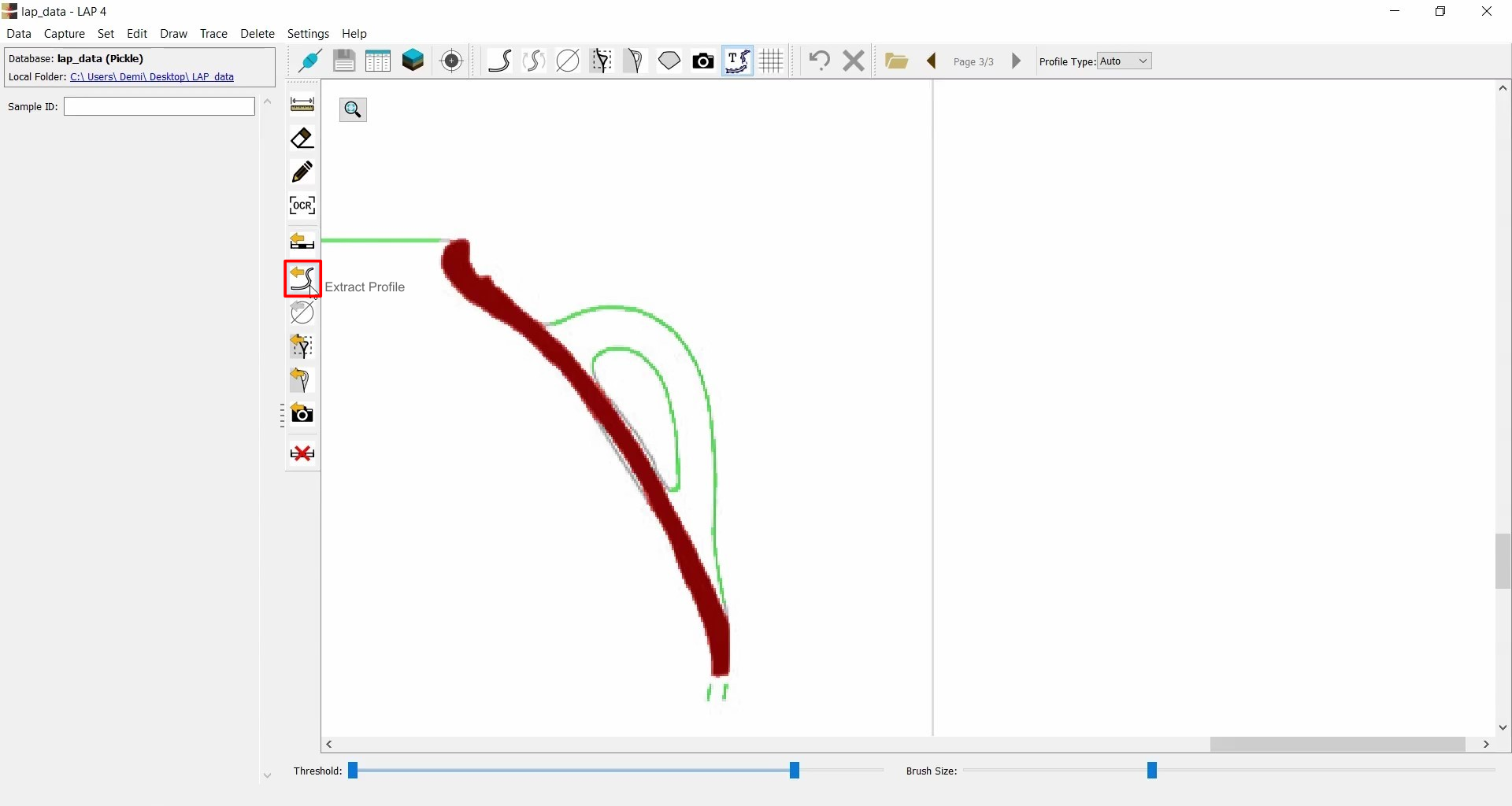
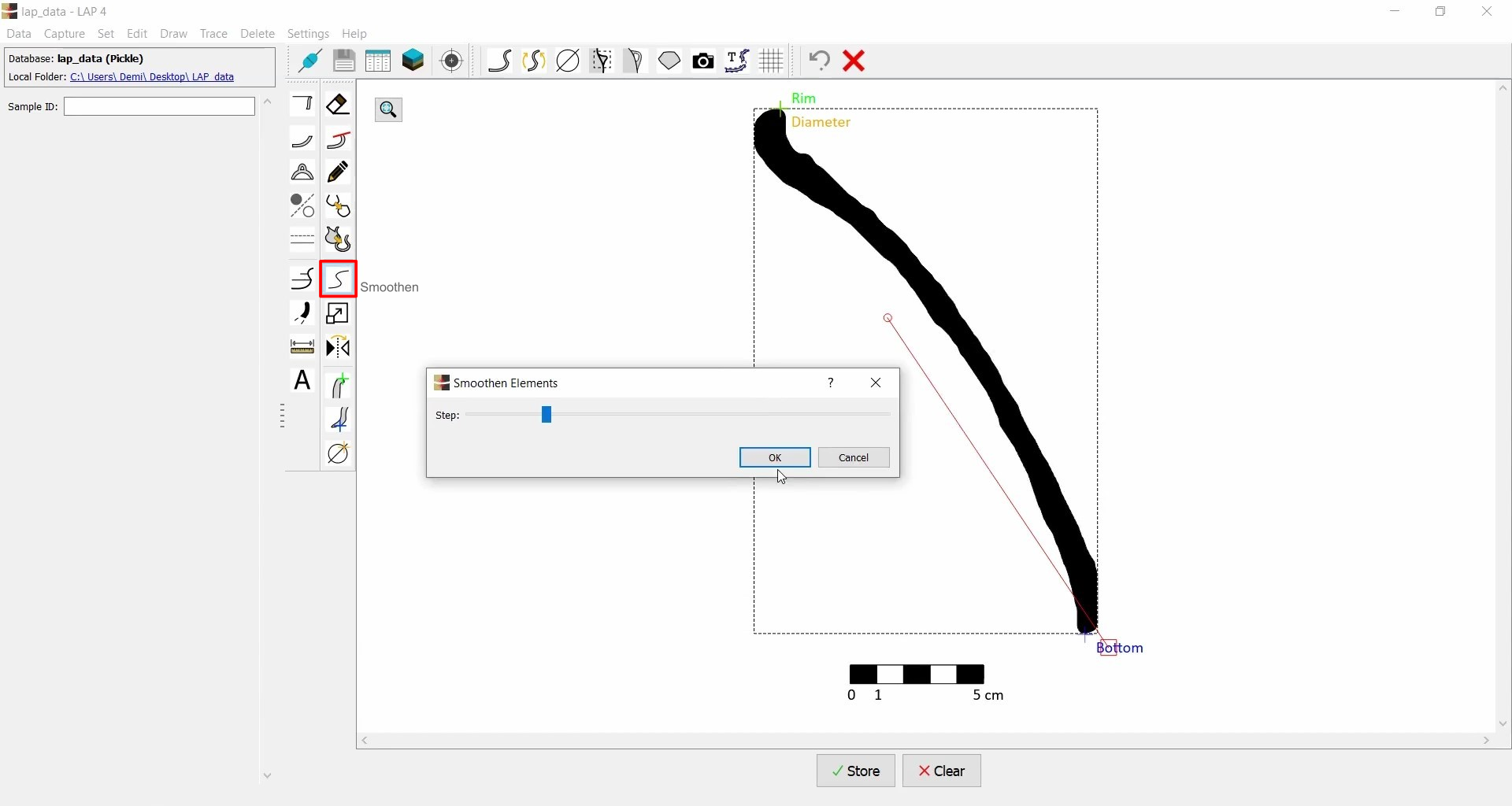
- Optionally apply Smoothen (
 ) if the line appears jagged (common with low-resolution images).
Extracting Radius
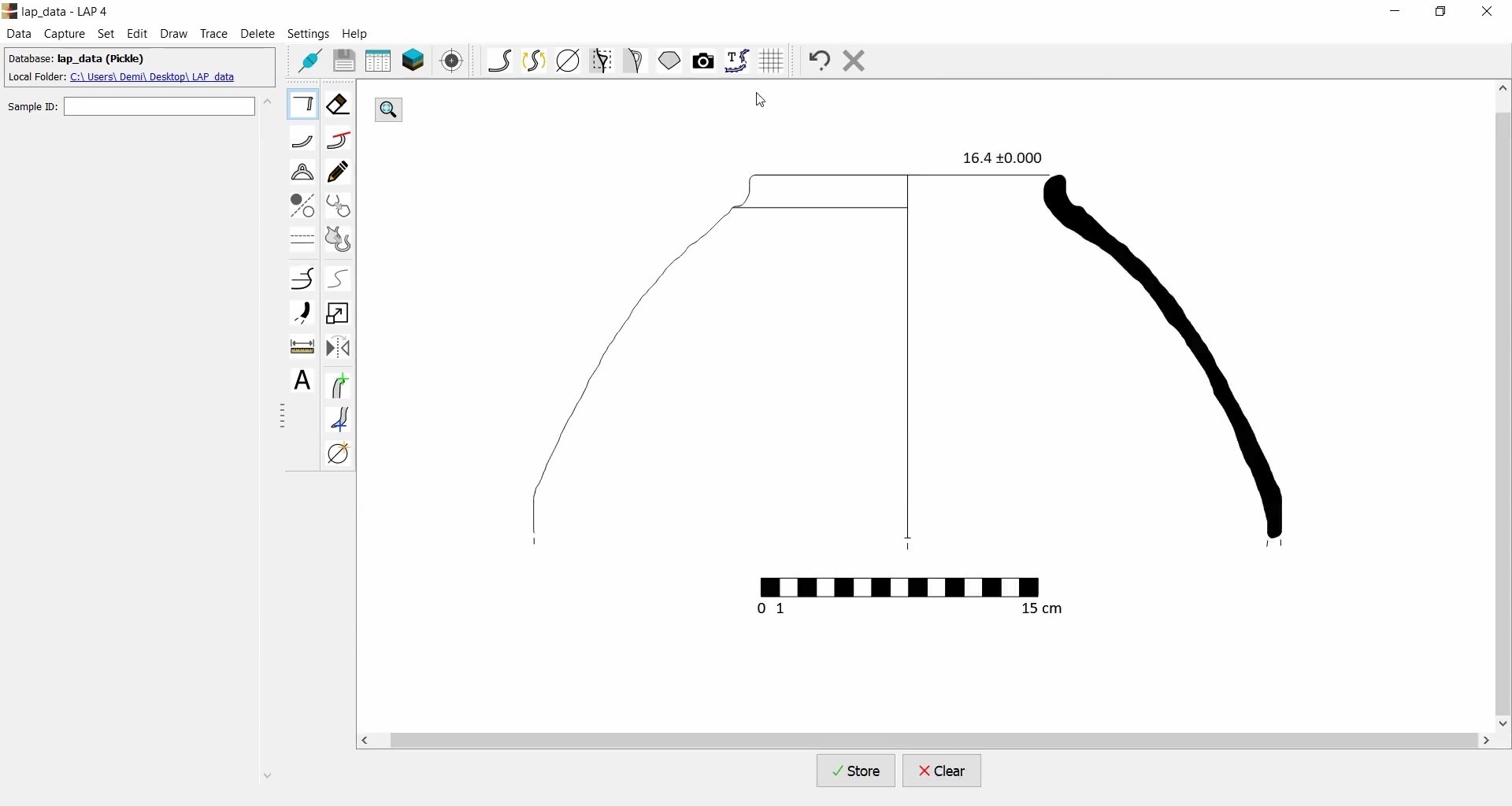
- Use the Measure Tool to measure the radius (not diameter).
- Click Extract Radius and mark it as a rim.

- Optionally mark the bottom point, break lines, and inflection lines.
Extracting Additional Elements
- Disconnect the handle from the rest of the drawing using Erase Mask Area.
- Select both inner and outer contours of the handle.
- Click Extract Handle.

- Use Trim to remove excess areas, if necessary.
- Place the extracted handle in the correct position.

Extracting Photo from Drawing
- Disconnect the photo from the rest of the drawing using Erase Mask Area.
- Use Extract Photo (
 ) to import it into the drawing.

Text Recognition
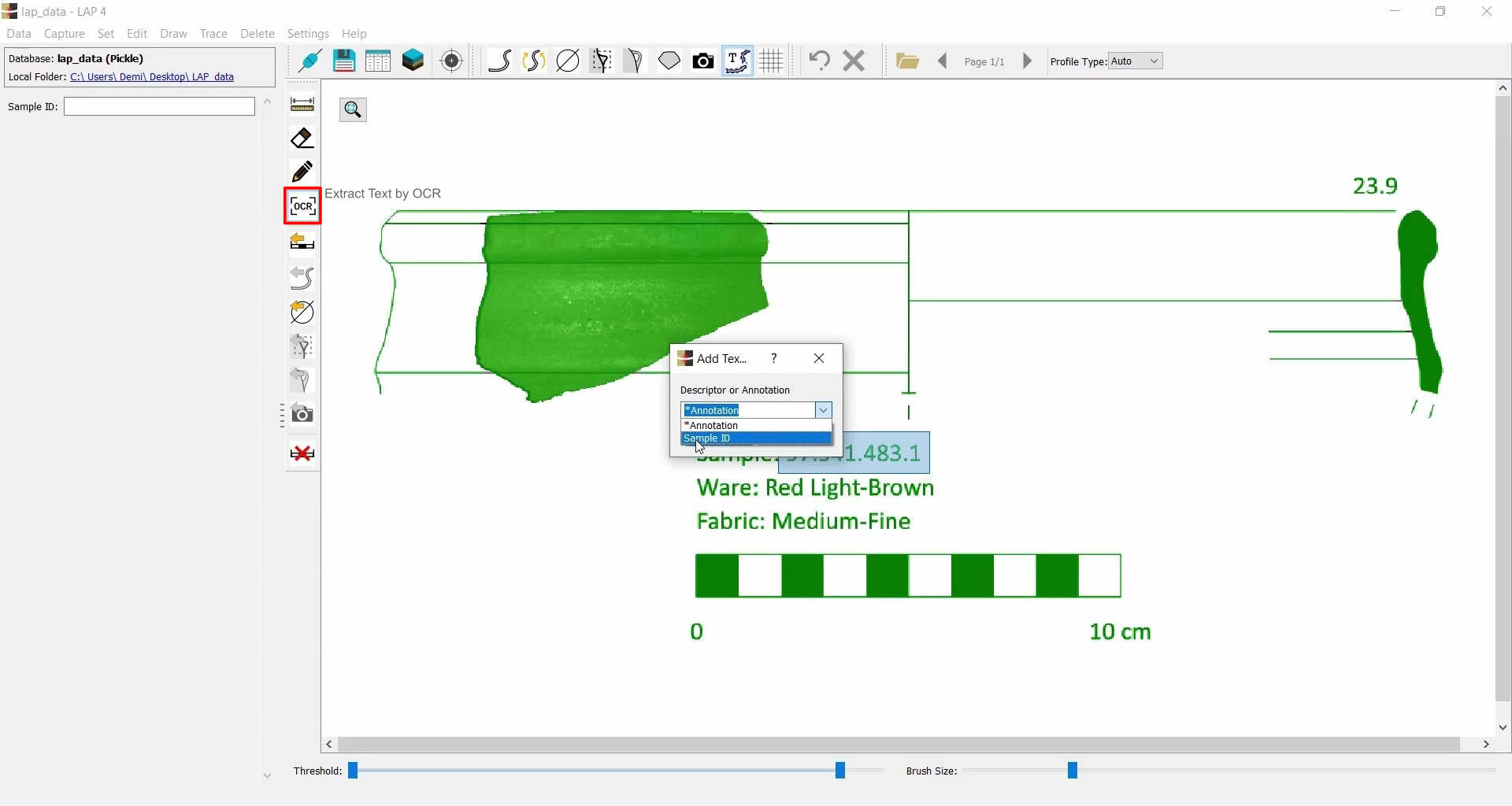
Use Extract Text by OCR to select a text area and choose how the recognized text will be used:
- Text can be assigned as Sample ID; it will automatically be linked to the current sample.
- Any other recognized text can be added as an annotation directly into the drawing.